Showing posts with label Windows Vista. Show all posts

Friday, March 18, 2011

Capture active window using “PrntScrn”

I don’t need to tell about well known Windows’s “PrntScrn” functionality Smile. Yes, it capture current screen and you can paste that any picture editing application.  There are many efficient and more powerful screen capturing tools are available, but Window’s “PrntScrn” option is most simple option without installing any third party software.

Most of the time we need to capture only Active window rather than complete screen. I am very happy to see there is already a way to capture only active window using Fn + Alt + “PrntScrn”


image

Fn + Alt + PrntScrn

Ctrl + V in Paint application

image

You can notice , only current active window gets captured ( pasted in Paint application).

Friday, October 2, 2009

Adding frame/border to picture using Picasa 3.0

There is a tricky way to add border to the picture using Picasa 3.0’s Collage feature. Here is the step by step way

1. Select picture and click on Collage option.

Figure 1 

2. Select Mosaic option

Figure 2

3. Select properties as per requirements

Figure 3

Figure 4

4. That’s it now Create Collage

Figure 5

Here is the Result  Created Collage

Saturday, June 27, 2009

How to Cut mp3 files without using any third party tools in Windows XP/Vista

     There are many tools available to cut mp3 files, but most of them are either not free or not standard. There is a simple and easy way of doing this in Windows XP/Vista. Most of time XP/Vista comes with Windows Movie Maker software. If you don’t have this software then we can download this from http://www.microsoft.com/windowsxp/downloads/updates/moviemaker2.mspx.

You can cut any mp3/audio file using these few steps

1. Import mp3/audio file to Windows Movie Player using Audio/Music import option. You will see this option on left side menu as shown below

Audio Import

2. Drag and drop imported audio file to Audio Timeline.

2009-06-28_1035.png

3.You will find “Split” option on right bottom, it splits selected file into two parts from present selected location.
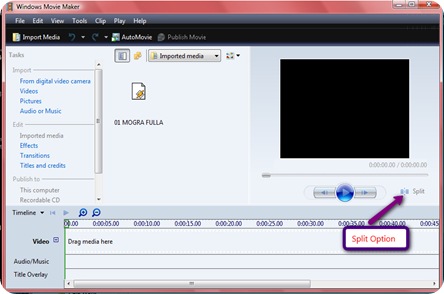
2009-06-28_1038.png

4.Now suppose you have to cut part of the 00:15 to 00:25 seconds. First select 00:25 second time line and split it into two using “Split” option. And then Select 00:15 and repeat same steps.

Fullscreen capture 6272009 40618 PM.bmp

Fullscreen capture 6272009 40659 PM.bmp5. Now delete unwanted front and end part. Select “Publish” option to save this cut clip.

2009-06-28_1058